


By Elias Shekh Writes the guides on this blog and builds the tools they describe.
The Art of Cropping and Rotating: Framing Images for Web and Social Media
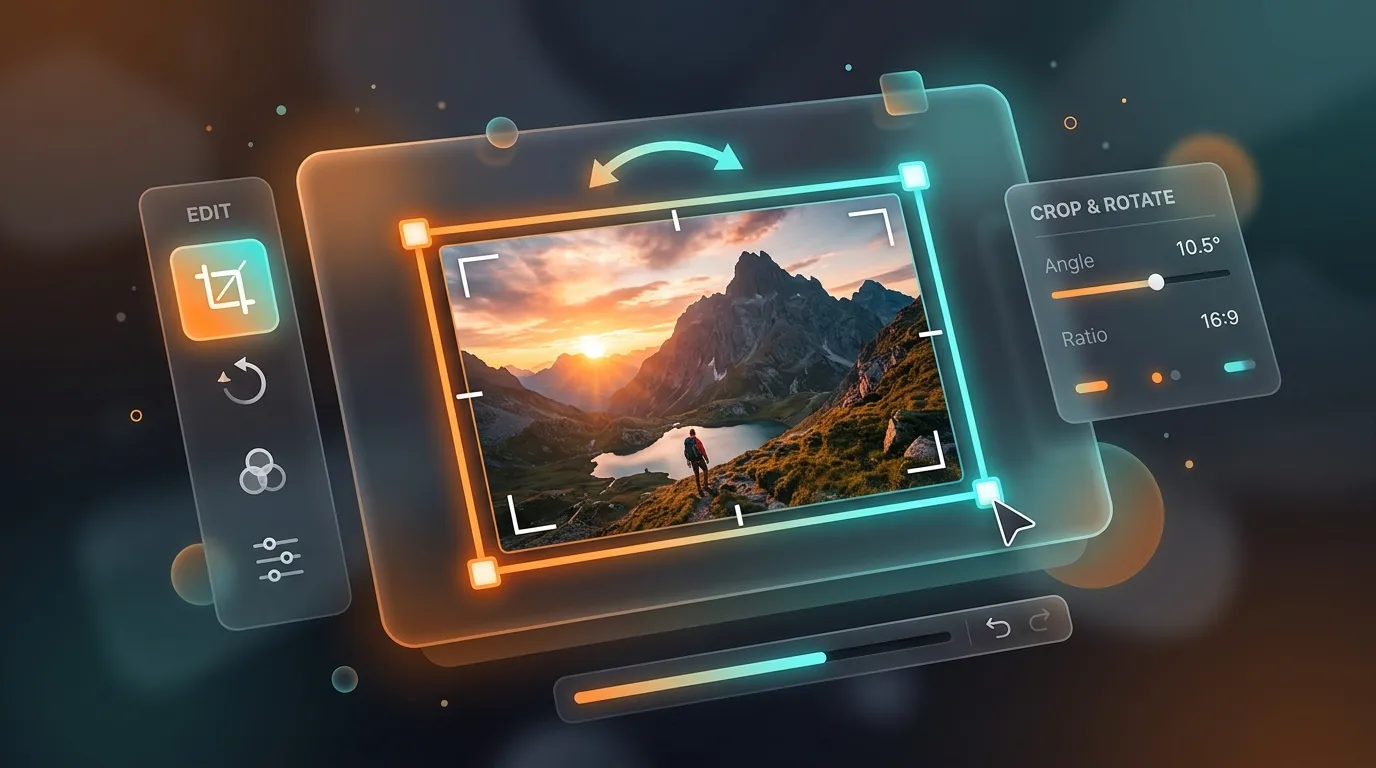
Framing is everything. An image that looks incredible in a photo gallery can look awkward or cut off when placed into a website header, a square social media post, or a vertical mobile display. Cropping is the process of adjusting an image's composition to tell the right visual story, while rotating aligns horizontal lines or fixes orientation issues. This guide covers how to frame and crop your graphics for the web without losing clarity or warping your subjects.
Understanding aspect ratios
An aspect ratio is the proportional relationship between an image's width and its height (e.g., 16:9 for widescreen video, 1:1 for a square, 4:5 for vertical social posts). When you stretch an image to fit a target aspect ratio, it distorts the content, making people look stretched or squished. Instead of stretching, you should crop the image to the correct ratio, deciding which parts of the frame to keep and which to discard.
How to crop without losing image clarity
Whenever you crop an image, you are discarding pixels. If you start with a low-resolution image and crop it tightly, the final output might end up pixelated or blurry when stretched to fill a website layout. To avoid this, always start with the highest resolution original available, perform your crop, and then resize the cropped image to its final display dimensions.
Correcting orientation and angles
Photos shot on mobile devices often import sideways because of orientation metadata mismatches. Rotating the image by 90-degree increments corrects this. For photos with a visible horizon or straight lines, a slight rotation correction (even just 1 or 2 degrees) can make a diagonal horizon look perfectly flat, instantly giving the photo a professional, deliberate look.
A checklist for framing web graphics
- Identify the target aspect ratio of the destination container.
- Choose the crop box that keeps the main subject in the center of interest.
- Avoid cropping too close to faces or text to leave breathing room.
- Rotate sideways or upside-down images before performing crops.